How to Embed Google Maps on Any Website or Welcome Book
Learn how to embed Google Maps using iframes, JavaScript API, and platform tools. Includes API key setup, responsive design, and privacy tips for hosts.
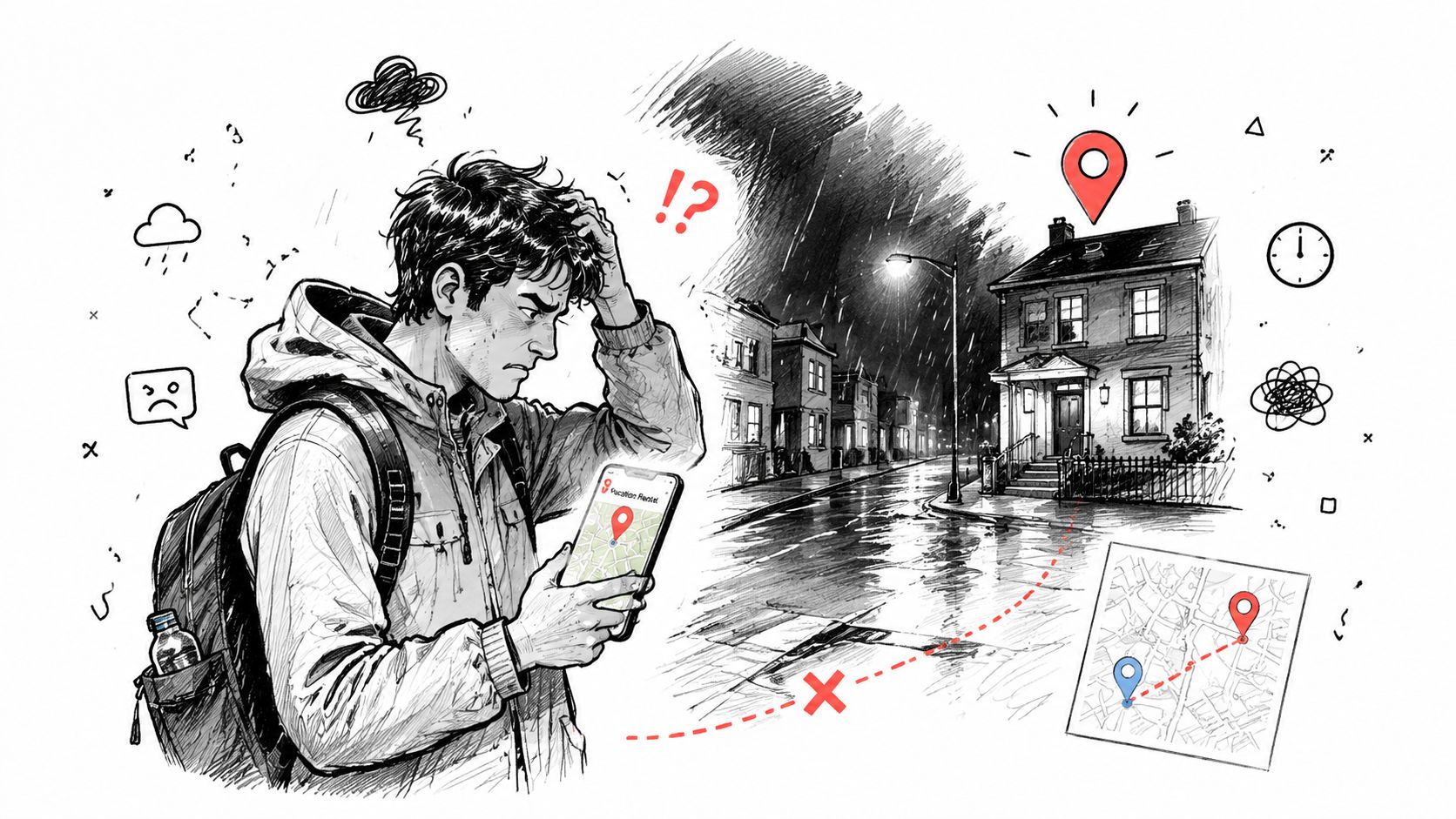
A guest messages you late at night: “The address brought me to the wrong street.” You check the booking details and realize the property name appears in more than one place nearby. The address was technically correct, but it wasn't useful enough for someone arriving tired, in the dark, and unfamiliar with the area.
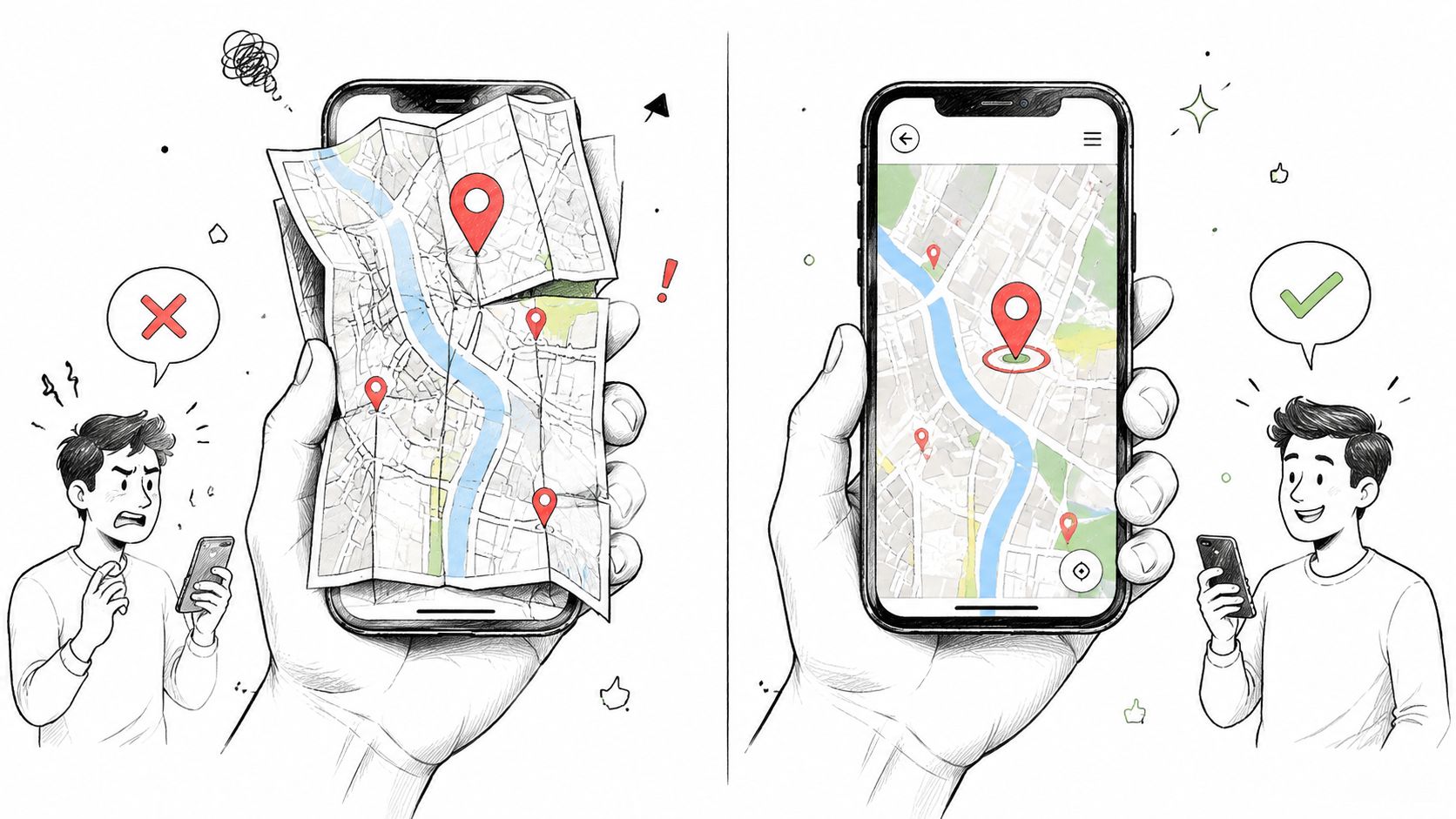
That's where an embedded Google Map earns its place. A map on a property page or digital welcome book gives guests visual context, nearby landmarks, and a direct route into Google Maps without making them copy and paste an address. The basic iframe takes minutes to add, but reliable implementation requires more than placing a map on the page. Mobile layout, keyboard access, privacy consent, API security, and the way your chosen platform handles HTML all affect whether the embed helps or frustrates guests.
Table of Contents
- Why Embedded Maps Matter for Hosts and Site Owners
- The Quickest Way to Embed a Map Using an Iframe
- Setting Up Your API Key and Google Cloud Billing
- Choosing the Right Embed Mode for Your Use Case
- Making Your Embedded Map Responsive and Accessible
- Privacy and Consent Considerations for Embedded Maps
- Platform Tips and Common Embedding Errors
Why Embedded Maps Matter for Hosts and Site Owners
The most useful map isn't necessarily the most advanced one. For a short-term rental, guests usually need to answer practical questions quickly: Is this the right building? Where is the entrance? Can I identify the driveway? How close is the property to the beach, station, grocery store, or airport route?
A text address answers only one part of that problem. An interactive map lets a guest zoom out to understand the neighborhood, zoom in to identify the approach, and open navigation when they're ready to travel. That visual confirmation can prevent the familiar late-night exchange where a guest is close to the property but has followed an ambiguous road name or an inconvenient routing instruction.
Google Maps has operated since 2005, and independent market summaries published in 2026 report more than 2 billion monthly active users worldwide. Some of those summaries also estimate that more than 1 billion people use Google Maps monthly to search for local places and services. These figures come from Google Maps usage summaries, not from Google's Embed API documentation, but they illustrate why guests often recognize the interface immediately.
Maps support the moments that create support requests
Hosts can use a map to:
- Clarify arrival: Show the property in relation to a recognizable landmark or road.
- Reduce address confusion: Give guests a visual check before they start driving.
- Improve local guides: Pin restaurants, cafés, attractions, parking areas, and transport stops.
- Keep instructions together: Place the map beside check-in, parking, and entrance details.
A digital welcome book is particularly useful here because the guest can open location information from the same mobile page as the Wi-Fi details and house rules. For a practical example of that broader guest-information format, see this guide to digital welcome books for vacation rentals.
Google's Maps Embed API uses an iframe-based HTTP request and offers five predefined modes, place, view, directions, streetview, and search. The standardized structure means you can add location context without building a mapping interface from scratch. For most individual property pages, start with the simplest useful view, then add richer interaction only when guests need it.
The Quickest Way to Embed a Map Using an Iframe
For a single property location, Google Maps' built-in sharing tool is usually the fastest route. You don't need to write JavaScript, create a custom map component, or begin with the Maps JavaScript API.
Open Google Maps, search for the property, and check the result carefully. If the address is ambiguous, confirm the pin against the entrance, building, driveway, or nearby landmark before copying anything.
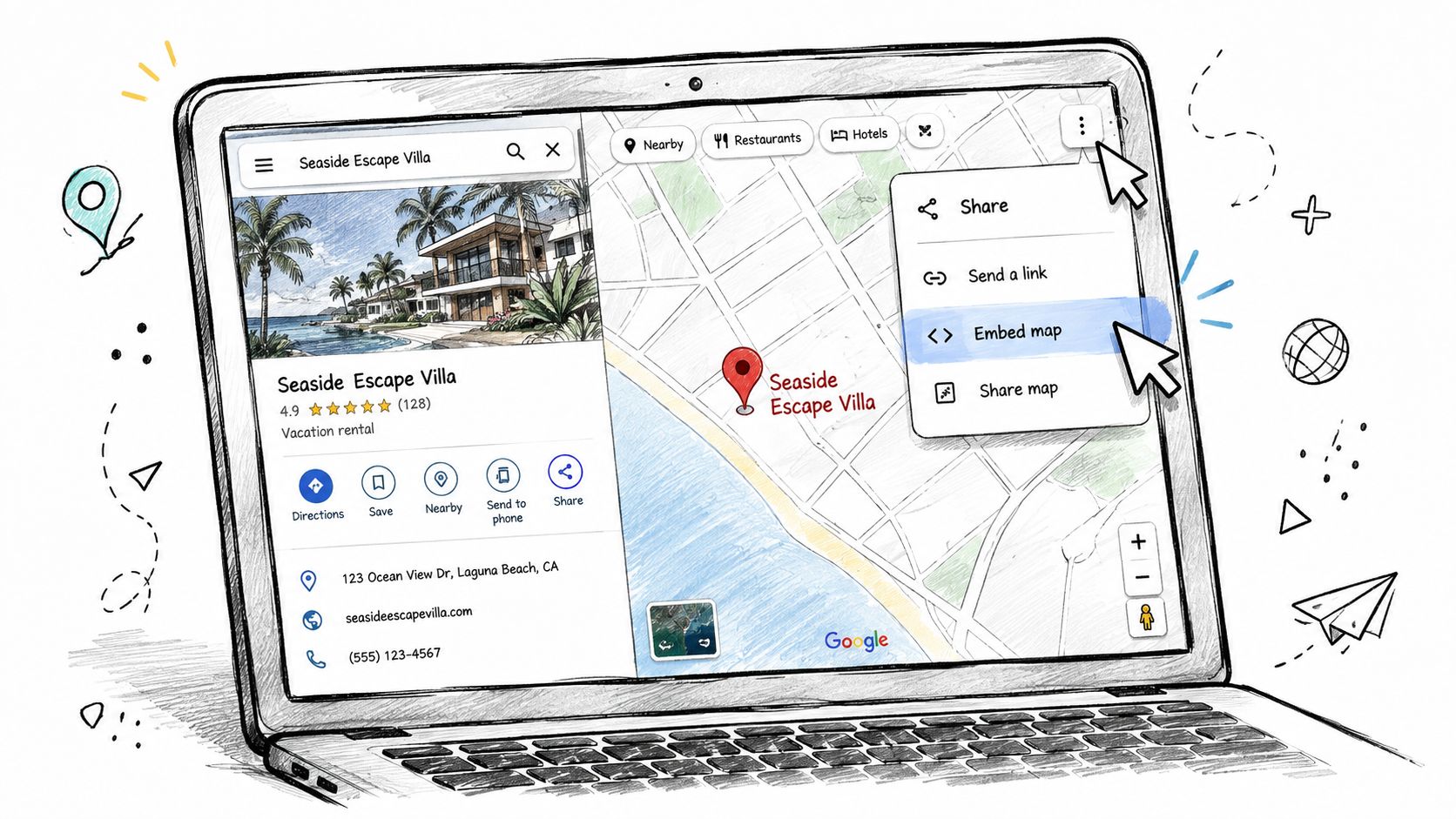
Copy the generated embed code
Use this sequence:
- Find the location: Search the full property address in Google Maps.
- Open sharing options: Select Share from the location panel.
- Choose the embed tab: Select Embed a map.
- Select a size: Choose a preset size, then select Copy HTML.
- Paste the iframe: Add the code to your website's HTML or source-code editor.
- Publish and test: Open the finished page on a phone and desktop browser.
The generated iframe includes Google's own map controls and a route into the full Google Maps experience. That's enough for a contact page, a single listing, or a welcome-book location card where the primary need is orientation.
The quick embed has clear limits. You won't get custom markers, multiple location layers, or full control over the visual design. The copied code may also use fixed width and height values, which can overflow a narrow mobile layout. You can replace the width with 100%, but the parent container still needs a defined height. Otherwise, the map may collapse or appear awkwardly proportioned.
A direct iframe is also different from a custom JavaScript map. Google documents the Embed API as free to use with unlimited requests and no daily rate limits, while still requiring an API key and Google Cloud setup for the API-based method. The Maps Embed API getting-started documentation explains the available modes and embed structure.
The following video gives a visual walkthrough of the basic Google Maps interface and sharing workflow:
Use the simple share embed when speed matters and the map has one job. Upgrade only when custom behavior solves a real guest or site-owner problem.
Setting Up Your API Key and Google Cloud Billing
The API route fits hosts who need a controlled embed URL, a selected mode, or the same setup across several property pages. It also creates a security task that quick tutorials often skip. An API key is a credential, and an unrestricted browser key can be copied and reused elsewhere.
Google's Embed API is free with unlimited requests and no daily request cap, but it still requires an API key and Google Cloud configuration. Read the Maps Embed API usage and billing guidance before publishing. It covers usage, billing setup, key restrictions, and common configuration problems.
Create the project and enable the API
In Google Cloud:
- Create or select a project: Keep the mapping setup in a project you can identify and maintain later.
- Set up billing: Follow the billing prompts and add the required payment method.
- Enable Maps Embed API: Open the API library, find the Embed API, and enable it for the project.
- Create credentials: Generate an API key in the credentials area.
- Record the key securely: Add it only where your website platform or page requires it.
The project being active does not limit which websites may use the key. Key restrictions handle that boundary.
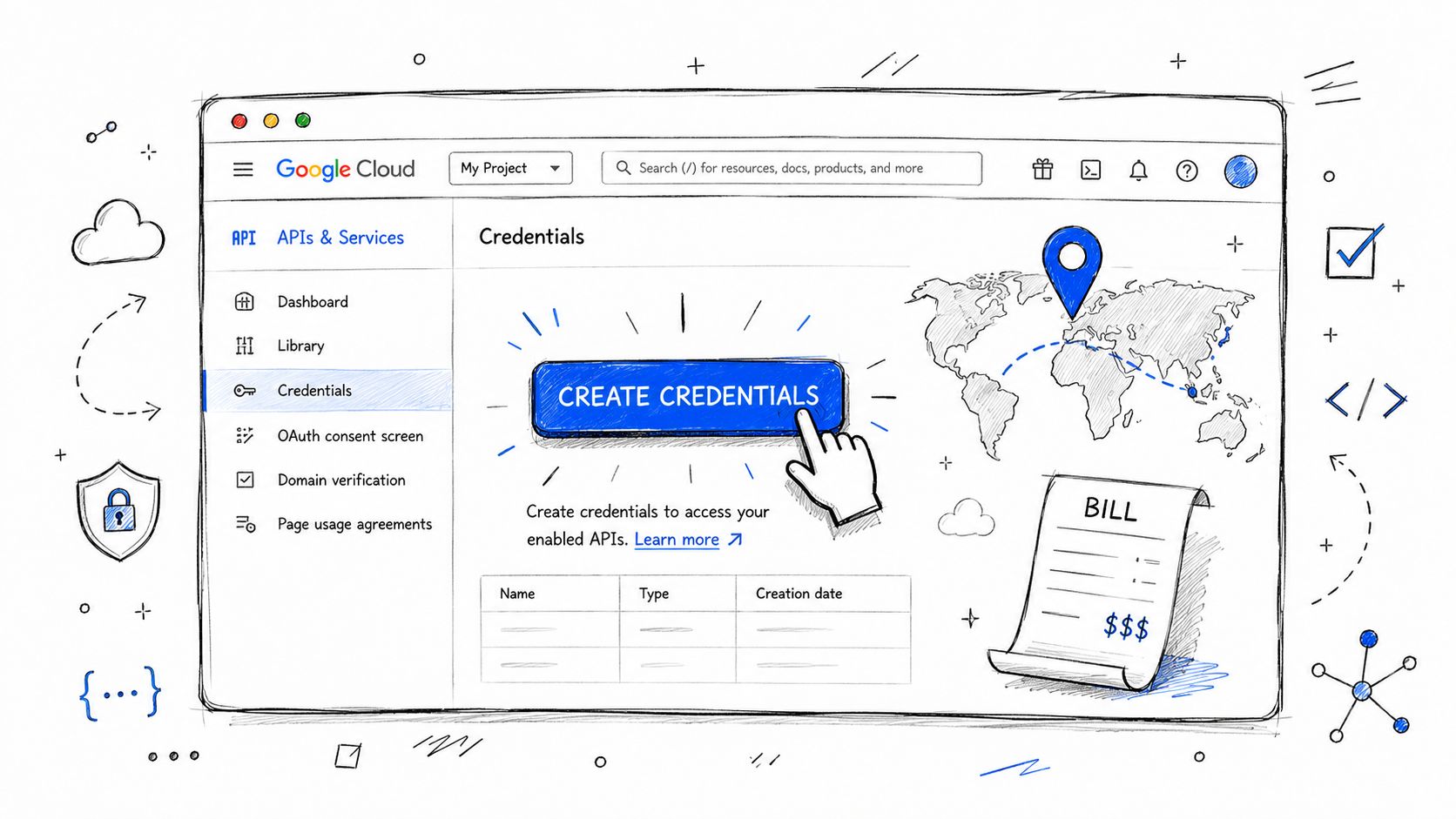
Restrict the key before publishing
Set an HTTP referrer restriction for every domain that should load the map. Add an API restriction so the credential can call only the Maps Embed API, where that option is available in your configuration.
Security rule: Never leave a production browser key broadly unrestricted because the API has no daily request cap.
Test the restricted key on the live domain, including both the www and non-www version when your site uses them. Add a staging domain only if you intend to permit it. A key that works locally but excludes the published hostname will leave visitors with a broken map.
Keep the implementation narrow. A property page with one pinned location usually needs only a place embed. Do not add the JavaScript API unless the page requires custom behavior that the Embed API cannot provide.
Choosing the Right Embed Mode for Your Use Case
The right embed mode depends on what the visitor must do next. Use Place when guests need to confirm a property's location, Directions when they need a route, and View or Street View when surrounding context matters. Search can support a local guide, but it gives you less control over the places shown.
| Embed Mode | Best Use Case | Key Limitation |
|---|---|---|
| Place | Pin a property, hotel, office, restaurant, or attraction with location context | It focuses on a selected place rather than a broader custom guide |
| View | Show a general map, satellite perspective, or selected viewpoint | It may not provide the clear location card a guest expects |
| Directions | Help guests plan a route from an origin to the property | It adds interaction and can be unnecessary for simple orientation |
| Street View | Show the street, entrance approach, or surrounding frontage | Street-level imagery may not match current conditions |
| Search | Display results for a query such as cafés or attractions near a location | Results can include alternatives or competitors you don't control |
Match the mode to the page
Place mode is usually the practical choice for a property page. It gives visitors a clear location anchor beside written arrival instructions. Use a precise Place ID or plus code when possible. An address string can resolve to the wrong building, especially in areas with similar street names or multiple units.
Directions mode fits a digital welcome book or “Getting here” page when guests need to plan travel from an airport, station, or event venue. It can be unnecessary beside a simple address card. Add a clear prompt for the starting point so visitors know what to enter.
Search mode works for local recommendations, such as cafés, groceries, or attractions near the rental. Review the query before publishing. Search results may include businesses you have not visited, competitors, or locations that are no longer suitable, so label the section as search results rather than as a personal recommendation.
View mode provides broader geographic context. A beachfront apartment, mountain cabin, or rural property may benefit from a satellite or area view before arrival. Street View is more useful when the entrance, driveway, or road approach is difficult to identify. Check the imagery before relying on it, because street-level coverage may be outdated or unavailable.
The Embed API documentation explains the parameters for Place mode and links to the other mode references. Build one URL, test it on the published page, and then reuse the pattern across properties. For a welcome book, also confirm that the selected mode supports the visitor's task without forcing extra interaction.
Making Your Embedded Map Responsive and Accessible
A map that looks fine on a desktop can break the arrival experience on a phone. Fixed iframe dimensions often extend beyond the content column, while an iframe with no usable height can disappear inside a responsive theme.
Use a wrapper that controls the shape of the map, then let the iframe fill that wrapper:
<div class="map-container">
  <iframe
    src="YOUR_GOOGLE_MAPS_EMBED_URL"
    title="Map showing the vacation rental location"
    aria-label="Interactive map showing the vacation rental location"
    loading="lazy"
    allowfullscreen>
  </iframe>
</div>
.map-container {
  width: 100%;
  aspect-ratio: 16 / 9;
  overflow: hidden;
}

.map-container iframe {
  width: 100%;
  height: 100%;
  border: 0;
}
The aspect-ratio method is easy to maintain because the container determines the height. If an older theme doesn't support it reliably, use a positioned wrapper with a percentage-based padding technique instead. The principle stays the same, keep width fluid and give the map a predictable height.
Treat the iframe as one part of the information
An embedded map doesn't replace written directions. Screen readers and keyboard users may encounter the map as an external interactive document, and some visitors may have scripts blocked or may decline consent. Provide the full address in visible text, identify the entrance or parking point, and include a plain-language route.
Google's accessibility update describes work on the Embed API involving tab order, keyboard and screen-reader interactivity, accessibility labels, and contrast. Those changes are documented in Google's Maps accessibility update, but hosts should still test their own page around the iframe.
Add a meaningful title, use a concise aria-label, and make the surrounding instructions understandable without the map. The WCAG accessibility standards guide is a useful reference when a map sits inside a larger guest-information experience.
Use loading="lazy" when the map sits below the first screenful of content. It defers loading until the visitor is likely to need the frame, which can reduce unnecessary work for a page where the address and check-in details should appear first.
Privacy and Consent Considerations for Embedded Maps
A live map is an external service loaded inside your page. That matters because the browser connects to Google infrastructure when the iframe loads, even if the visitor never clicks the map. Google's FAQ confirms that maps can be embedded without programming or a Google Maps Platform integration, but the absence of custom code doesn't remove the need to assess what third-party content your site loads.
Privacy expectations vary by jurisdiction and by how your consent system classifies external media. Sites serving visitors in the EU or UK should ask their privacy adviser or consent-management provider whether the map must wait for permission before loading. Don't label an embed “GDPR compliant” without checking the actual behavior of your site, your banner configuration, and the rules that apply to your audience.
Use a click-to-load pattern
A practical design is to show a neutral placeholder first:
- Visible location text: Display the property address and written arrival information.
- Clear explanation: Tell visitors that activating the map loads Google content.
- Consent control: Use a button such as “Load interactive map.”
- Deferred iframe: Insert the live iframe only after the visitor activates it.
- Alternative route: Offer a direct Google Maps link for visitors who prefer to leave the page.
The placeholder can contain a locally hosted image or a styled location card, provided it doesn't itself call a third-party mapping service. Your consent platform may already support this pattern through an embedded-content block. On WordPress, check whether your cookie-consent tool can block Google Maps until the relevant consent category is accepted rather than adding an unrelated map plugin and assuming the two systems communicate.
Keep records of the services used on the page, the consent category assigned to the map, and the explanation shown to visitors. Compliance documentation for hospitality operators can help you organize that operational record, but it isn't a substitute for jurisdiction-specific legal advice.
Privacy and performance often point to the same implementation choice: load the map after the visitor asks for it. That keeps the initial page focused on the information every guest needs, while still making interactive navigation available.
Platform Tips and Common Embedding Errors
The correct embed code can still fail if the platform strips HTML, blocks scripts, or expects a URL instead of an iframe. Start with the editor, not the map. Identify whether it accepts raw HTML, a rich-text source editor, a widget, or only a direct link.
For WordPress, paste the iframe into a Custom HTML block. The visual editor may remove or transform iframe markup, especially when you switch between editing modes. If your theme applies restrictive content rules, use a reputable map block or plugin, but review its privacy behavior and key requirements before enabling it.
For HubSpot, the documented workflow uses a rich text module and its source-code editor. The HubSpot Google Maps embedding instructions outline that editor-based approach.
Digital welcome-book platforms often use a different pattern. Some accept a direct Google Maps share URL, while others provide a location widget where you enter coordinates or an address. ScanStay's digital guest-book platform includes a Local map section for pinning restaurants, sights, and cafés on Google Maps, so hosts should use the platform's location fields or widget instructions rather than pasting arbitrary HTML into a text area.
Diagnose the failure by symptom
| Error Symptom | Likely Cause | Fix |
|---|---|---|
| Map is blank on the live domain | API key referrer restriction excludes the hostname | Add the correct production domain to the allowed referrers |
| Warning appears over the map | Billing or project configuration is inactive | Check the Google Cloud project and billing status |
| Map works in one editor but not another | The platform strips iframe markup | Use a Custom HTML block, source editor, or native map widget |
| Map extends beyond the phone screen | Fixed iframe width or missing wrapper styles | Set the iframe width to 100% and give its parent a responsive aspect ratio |
| Map area has no visible height | The iframe or container has collapsed | Set an explicit height through the wrapper |
| Content doesn't load on an HTTPS page | An insecure resource or redirect is involved | Use the HTTPS embed URL and inspect the final request |
| Updated code doesn't appear | Page or CDN cache serves the old version | Clear the relevant caches and test in a private browser window |
When the symptom isn't obvious, test the embed URL directly in a browser first. Then check the API key restrictions, confirm the project is active, inspect the browser console for policy or loading errors, and verify that the page's content-security rules permit the required Google frame. After changing the code, clear page and CDN caches before deciding that the fix failed.
ScanStay lets hosts place local recommendations, arrival information, and other guest instructions in a mobile-friendly digital welcome book, with a Local map area for pinned places such as restaurants and attractions. If you want to replace scattered messages with one QR-accessible guest guide, visit ScanStay and set up your property information in one place.