How to Sync Google to Outlook Calendar in 2026
Learn how to sync google to outlook calendar effortlessly. This guide covers desktop, Mac, web sync, one-way vs two-way, troubleshooting, & expert tips for
You're staring at two calendars that should already agree, but they don't. Google has the blocked-out stay, Outlook still shows you free, and the next inquiry lands right in the middle of a turnover day. That's how hosts end up apologizing to a guest, rearranging cleaners, and losing trust over a calendar problem that should have been solved before it hit inbox level.
For short-term rental operators, sync Google to Outlook calendar isn't a convenience feature. It's a double-booking prevention system. If you're juggling Airbnb, Booking.com, VRBO, cleaner schedules, and personal appointments, calendar drift turns into real operational damage fast.
The right setup depends on your account type, your device, and how many properties you manage. A single listing can get by with a light subscription. A growing portfolio needs something sturdier. The wrong choice is pretending every setup needs the same tool.
Table of Contents
- Why Calendar Sync Matters More Than You Think
- What You Need Before You Start Syncing
- One-Way vs Two-Way Sync and How Often Updates Push
- Syncing Google Calendar to Outlook on Windows
- Syncing Google Calendar to Outlook on Mac and Outlook Web
- Troubleshooting the Four Most Common Sync Failures
- A Host Sync Stack That Prevents Double Bookings
Why Calendar Sync Matters More Than You Think
A host blocks a Friday checkout in Google Calendar after a late Airbnb reservation. Outlook never catches the update in time, so a personal dinner, a contractor visit, or a second guest inquiry gets booked into the same slot. The result is more than an annoying overlap. It turns into a refund, a scramble, and a hit to your reviews.
This is why calendar sync matters more for hosts than for the average person. In short-term rental operations, a missed booking does not stay inside the calendar app. It reaches guest messaging, cleaning schedules, arrival timing, and sometimes platform penalties when availability data is wrong.
For hosts, the calendar is a control point, not a convenience. If a booking hits one system and fails to reach the others, the whole operation slows down.
A host juggling Airbnb, Booking.com, VRBO, and Outlook needs a setup that treats calendar sync like a double-booking prevention system. That means choosing a method that fits the way the portfolio runs, then keeping availability data centralized instead of manually moving events around.
Your calendar also sits inside a wider workflow. If you need to automate data sharing and productivity, calendar sync is one of the first places where bad handoffs show up fast. When the feed is current, guest communication stays cleaner, turnover timing stays intact, and the team stops guessing what is available.
What You Need Before You Start Syncing
Before you touch a setting, decide which calendar owns the truth. If Google Calendar is where bookings land first, Outlook should mirror it. If Outlook is the daily command center, Google needs to follow that pattern. A host who skips this decision ends up with duplicate holds, stale availability, and a mess that spreads across every channel.
Google account type changes the setup path. Google's calendar subscription flow uses the calendar settings panel and the generated iCal link, while Microsoft draws a hard line between one-way subscription and true two-way sync for Google Calendar and Outlook. If you run Google Workspace, you may also have access to Google Workspace Sync for Microsoft Outlook (GWSMO), which is the cleaner route for Workspace users who need tighter Outlook integration. The right choice depends on whether you need simple visibility or actual operational control.
Outlook version matters just as much. The web app, classic Windows desktop app, New Outlook, and Outlook for Mac do not behave the same way. Microsoft's guidance and third-party instructions also show that some paths are Windows-only, and GWSMO is tied to Workspace users and Outlook on PC, not Mac (Microsoft Q&A on sync options). If you are on a Mac, stop trying to force a Windows-only workflow.
An ICS/iCal URL is the subscription link that lets one calendar publish events to another. That is the foundation of a one-way feed, and it is different from a true bidirectional sync.
If your calendar setup sits inside a larger workflow, the same logic applies to the channel manager structure used to keep property availability aligned. Calendar sync works best when you decide what system owns the data and what system only displays it. The same mindset helps automate data sharing and productivity across your stack instead of letting every tool act on its own.
Before you change anything, run a pre-flight check.
- Back up both calendars. Export or note the current state before you touch sync settings.
- Count the live events. Know which calendar already holds your bookings.
- Identify the master calendar. Pick one place where availability is edited first.
- Separate property calendars from personal time. Do not mix guest holds with dentist appointments.
- Confirm device access. Make sure you can log into both Google and Outlook on the device you will use.
One-Way vs Two-Way Sync and How Often Updates Push
A one-way calendar subscription is fine when you only need a live view. It fails the moment you need the calendar to do operational work. Microsoft's guidance treats published calendar subscriptions as usually one-way, with updates that can lag, and points people who need ongoing two-way synchronization toward GWSMO or third-party tools such as CalendarBridge or Sync2 (Microsoft Q&A on sync options, Microsoft Q&A on one-way subscription behavior).
Use the simplest method that still protects availability
If you only need Outlook to show Google bookings, a one-way iCal subscription is enough. That works for blocking personal time or mirroring a booking calendar into Outlook so it sits beside meetings. It is also the safer choice when you do not want edits flowing back into the source calendar.
Two-way sync changes the workflow. Microsoft Q&A points users toward GWSMO and third-party services for automatic bidirectional syncing, which matters when both calendars are edited in real life by different tools or people. For hosts, that usually means staff, assistants, co-hosts, and personal scheduling all touch the same availability picture.
| Method | Account Type | Refresh | Edit Direction | Best For |
|---|---|---|---|---|
| iCal subscription | Personal or Workspace | Delayed, depends on calendar refresh behavior | One-way | Mirroring booking holds into Outlook |
| GWSMO | Google Workspace users on PC | Near-real-time behavior compared with subscribed feeds | Two-way | Workspace teams that live in Outlook |
| Third-party sync tool | Personal or Workspace | Set by tool and configuration | Two-way | Mixed environments and multi-calendar operations |
Match the method to the booking risk
A one-way feed is fine when Outlook is only a window into Google. It becomes a problem when someone edits the wrong side and expects the update to travel back. This is how calendar drift turns into overbooking risk.
If your workflow includes multiple booking sources, treat the calendar connection like a channel manager decision, not a simple import. The reasoning behind that choice is similar to channel manager definition, where the job is keeping one inventory picture across multiple sales paths.
Bottom line: if availability can be changed from more than one place, you need true two-way sync. If one calendar only needs to display the other, one-way is enough.
Syncing Google Calendar to Outlook on Windows
On Windows, the cleanest setup depends on what you need Outlook to do. If you only need a read-only view of Google Calendar inside Outlook, use the iCal subscription. If you run Google Workspace and want a tighter Outlook connection, use GWSMO. For short-term rental operators, that choice matters because the wrong setup creates a false sense of control, and that is how double bookings start.
Start in Google Calendar. Open the calendar settings, find Integrate calendar, and copy the Secret address in iCal format. Google's own help documents make that the standard path for cross-platform calendar subscription (Google Calendar support). Outlook reads that feed and displays it as a subscribed calendar.
In classic Outlook for Windows, go to Calendar, then Add Calendar, then Subscribe from web, or the equivalent web subscription option in your build. Paste the iCal URL, give the calendar a clear name, and save it. In the New Outlook, use the calendar add flow in the left rail, choose the internet calendar or subscribe option, and paste the same link. Keep the label obvious, like “Google Bookings Mirror,” so no one edits the wrong calendar later.
If you are on Google Workspace and need actual two-way sync, GWSMO is the formal route for Workspace users on PC. Microsoft and third-party guidance both point to that setup for teams that want one Outlook profile connected to Google in a more integrated way (Microsoft Q&A on sync options).
Keep your calendars separated by function
Do not dump every booking, turnover, and personal event into one shared calendar. Use one calendar for live reservations, one for cleaning or maintenance, and one for personal time if needed. This keeps edits from colliding.
- Set a clear display name. Use property names or “Master Availability” instead of generic labels.
- Watch the first refresh. Confirm events appear before you rely on the setup.
- Avoid editing the subscribed feed. One-way subscriptions are for viewing, not source editing.
- Add each property carefully. If you manage multiple units, subscribe each calendar separately.
For hosts building a larger operations stack around this, property management systems are the next step once Outlook mirroring stops being enough.
Syncing Google Calendar to Outlook on Mac and Outlook Web
Mac users need a different plan. GWSMO does not solve this problem on Mac, so do not rely on guides that pretend otherwise. The practical constraint is simple, Workspace users on PC get the cleanest path for deeper integration, while Mac users need to work with subscriptions or a third-party bridge.
On Mac, use subscriptions or a third-party bridge
In Outlook for Mac, go to Outlook, then Settings, then Accounts, then Add an Account, and look for the Subscribe from web style calendar flow if your version offers it. Paste the Google iCal link there. That gives you the same one-way feed behavior you would use on Windows, just through the Mac interface.
If you need true two-way behavior on Mac, do not force Outlook to act like a native sync engine. Use a third-party sync tool that clearly supports both platforms and both directions. Microsoft's guidance points to third-party services when you need automatic two-way syncing instead of a read-only feed (Microsoft Q&A on sync options).
Outlook on the web is good for visibility, not control
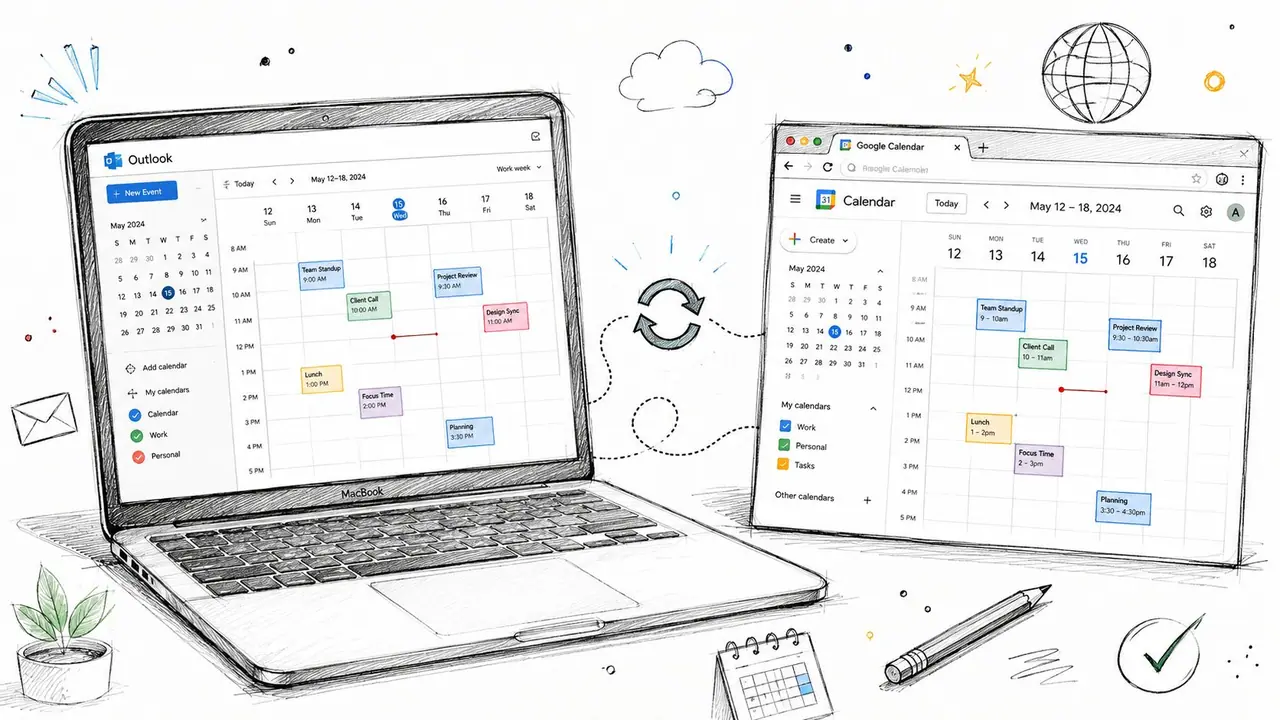
In Outlook on the web, add the subscribed calendar from the left rail, usually through Add calendar and then the internet subscription path. Paste the Google iCal link, name it, and confirm the calendar shows up in your list. This part is easy.
The limitation is the same one that comes with any subscription setup. Web-only access gives you visibility, but not native two-way synchronization without extra tooling. If your team works in a browser and only needs to view bookings, this is acceptable. If they need changes to move both ways, use a desktop client or a dedicated sync tool.
For hosts managing reservations, turnovers, and personal time at the same time, browser-only convenience stops being enough fast. A separate notification management setup helps keep changes visible when calendar syncing is only part of the workflow.
If the calendar is mission-critical, test it on a desktop first. Browser-only convenience is fine until a same-day change hits.
Watch for the practical signs that refresh is working. New bookings should appear without manual copy-paste, calendar names should stay distinct, and the subscribed feed should update on its own after a delay. If none of that happens, the issue is usually the subscription path or the wrong account type, not the booking source.
Troubleshooting the Four Most Common Sync Failures
Most sync failures come from the same four mistakes. Stop guessing. Match the symptom to the cause, then fix the source calendar, not the symptom.
Use this fast diagnosis table
| Symptom | Most Likely Cause | Immediate Fix |
|---|---|---|
| New events don't appear | Subscription hasn't refreshed yet, or the calendar was added incorrectly | Recheck the iCal URL, then wait for the subscribed calendar to refresh |
| Events show up twice | Both calendars are being used as active sources | Pick one master calendar and stop duplicate edits |
| Deleted events come back | You edited the subscribed feed instead of the source calendar | Delete or edit the event only in the master calendar |
| Refresh seems stuck | Cache, credentials, or account connection issue | Remove and re-add the calendar, then sign in again |
Fix the source, not the symptom
If events are missing, start with the iCal link. A stale or broken subscription link is a common failure point, and Microsoft's guidance keeps users pointed toward the subscription or sync path that matches the account type. If the link is wrong, Outlook will not manufacture the missing data for you.
Duplicates are usually a workflow problem. Someone edited both sides, or two calendars are acting as live sources at the same time. This is why the master-calendar rule matters.
If you are using GWSMO and Outlook does not seem to recognize the connection, check the profile and account setup first. Microsoft treats GWSMO as a separate path for Workspace users, so the wrong profile or multiple Google accounts can break the connection you expected. That is the option for teams who want one Outlook profile connected to Google in a more integrated way.
Hosts who run bookings across Airbnb, Booking.com, and Outlook need a stricter handoff layer around calendar changes. A solid notification management setup keeps booking changes visible when sync is only one part of the workflow, and Global's channel management insights are useful if you are deciding whether a channel manager belongs in that stack.
For teams that rely on browser-only subscriptions, keep expectations realistic. If the calendar looks right in one place but not another, recheck the source, the account, and the refresh path before you assume Outlook is broken.
A Host Sync Stack That Prevents Double Bookings
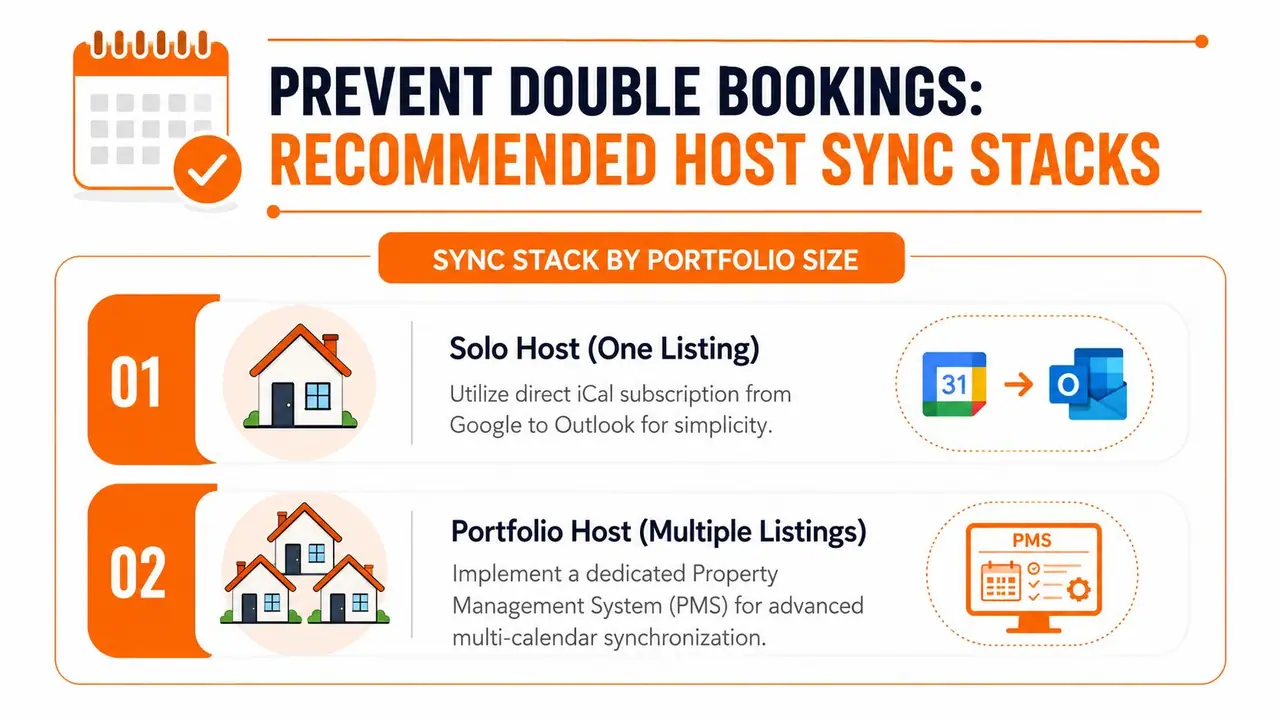
A sync stack should match the way bookings are managed. A solo host has one set of calendar decisions to protect. A portfolio host has multiple calendars, multiple sources, and more chances for one bad edit to create a double booking. Keep the setup simple only when the operation is simple, and tighten the process as soon as more than one person can touch availability.
Sync stack by portfolio size
| Portfolio Size | Recommended Method | Tool | Refresh | Master Calendar |
|---|---|---|---|---|
| Solo host, one listing | One-way subscription | Google iCal into Outlook | Delayed feed refresh | Google Calendar |
| Portfolio host, two to five properties | Two-way sync or managed multi-calendar setup | GWSMO on PC for Workspace, or a third-party sync tool | Faster than basic subscription behavior | One calendar per property |
| Multi-property manager, ten or more units | Dedicated channel-style setup | PMS or stronger sync layer | Operationally configured | Central booking system |
For a solo host, I would keep the stack lean. Use Google as the booking source, subscribe it into Outlook, and leave it at that. This gives you visibility without extra complexity.
For a two-to-five property portfolio, one-way subscriptions start to break down. At that point, the calendar setup should act more like an operations system than a read-only mirror. If your team edits events in both places, use two-way sync and decide clearly who owns each calendar. Global's channel management insights help when you are deciding how far to centralize inventory across platforms, and ScanStay's PMS guidance is a useful reference when you want the calendar stack to support a larger booking workflow.
For ten or more units, stop treating calendar sync as the main control layer. Use a proper PMS or a stronger orchestration layer, then let Outlook and Google serve as visibility layers for staff and personal planning. This keeps booking logic in one place and cuts the odds of human error.
The habits matter as much as the software.
- Use one master calendar per booking source. Don't split control across apps.
- Audit the first week manually. Check every new booking in both calendars.
- Separate guest holds from private time. Operational clarity beats convenience.
- Test time zone changes before peak season. Daylight shifts expose weak setups.
- Document who edits what. If more than one person can change availability, the rule has to be written down.
If you want a cleaner guest-facing operation, pair this calendar discipline with a digital welcome book workflow so booking data and guest instructions stay in the same operating rhythm. For hosts who want fewer calendar mistakes, fewer guest messages, and a cleaner handoff between booking and arrival, ScanStay gives you a single place to centralize guest info and reduce the support noise that usually follows a messy schedule. Visit it, set up the guest-facing side of your operation, and make your calendar system work like a proper booking safeguard instead of a daily headache.