Create a QR Code WiFi Password: Easy Guest Access 2026
Create a qr code wifi password for guests. Our 2026 guide helps hosts generate, print, and share secure WiFi access easily. Stop late-night texts!
Late check-ins have a way of exposing every weak spot in a rental. The guest is tired, the hallway light is too dim, the fridge note is too small, and the Wi-Fi password is usually the first thing they want before they drop their bags. If they have to type a long string of characters from a printed card, odds are good they'll ask again, mistype it, or just give up and message you from their phone.
A qr code Wi-Fi password solves that friction fast. Guests scan once and connect, which feels cleaner than reading, typing, and re-typing credentials from a paper binder. That matters because QR scanning is already normal behavior, 72% of consumers said they had scanned a QR code in the past month, and 44.6% of global internet users aged 16 to 64 scanned at least one QR code monthly in a 2026 report WaveCNCT QR code statistics. For a host, that means less confusion at arrival and a more polished first impression.
Table of Contents
- Why Every Host Needs a Wi-Fi QR Code
- Understanding the Wi-Fi QR Code Format
- How to Generate and Test Your Code
- Printing and Placing Your QR Code for Guests
- Essential Security and Password Rotation Practices
- Go Digital From QR Code to Full Welcome Book
Why Every Host Needs a Wi-Fi QR Code
The first Wi-Fi request is usually a moment of friction in the arrival process. A guest has already dealt with travel, keys, luggage, and a new space, and the last thing they want is to type a long password from a message or a printed note. For a host, that small delay is a useful warning sign, because it usually means the guest is doing work that the property should have handled for them.
A Wi-Fi QR code removes that step and gives guests a faster way to get online without asking for help. It also cuts down on repeat messages, which matters in rentals where the same password often gets shared, misplaced, or changed across bookings. Once the code is in place, the check-in flow feels more organized, and the property starts to feel easier to use from the first few minutes.
Why the guest experience improves immediately
Guests already know how to scan a code with their phone camera, so the handoff feels familiar and low effort. That matters in a rental, where people want to settle in, check messages, and get connected without waiting for a reply from the host. A QR-based setup reduces the small pause between arrival and access, which is exactly the kind of pause that creates tension.
My rule of thumb: if Wi-Fi is the first question at arrival, my check-in process has room to improve.
That rule helps me keep the experience practical. Fewer Wi-Fi questions means fewer support messages, fewer password resets, and fewer chances for a guest to feel stuck right after walking in. It also signals that the property has been set up with care, because the guest can tell the basics were handled before they arrived.
A QR code is also easier to manage across the full lifecycle of a rental stay. I can print it once, place it where guests naturally look, update the password when needed, and fold the same access point into a digital welcome book instead of scattering the information across messages and paper notes. That keeps Wi-Fi from becoming a recurring task and turns it into a simple part of the guest experience.
Understanding the Wi-Fi QR Code Format
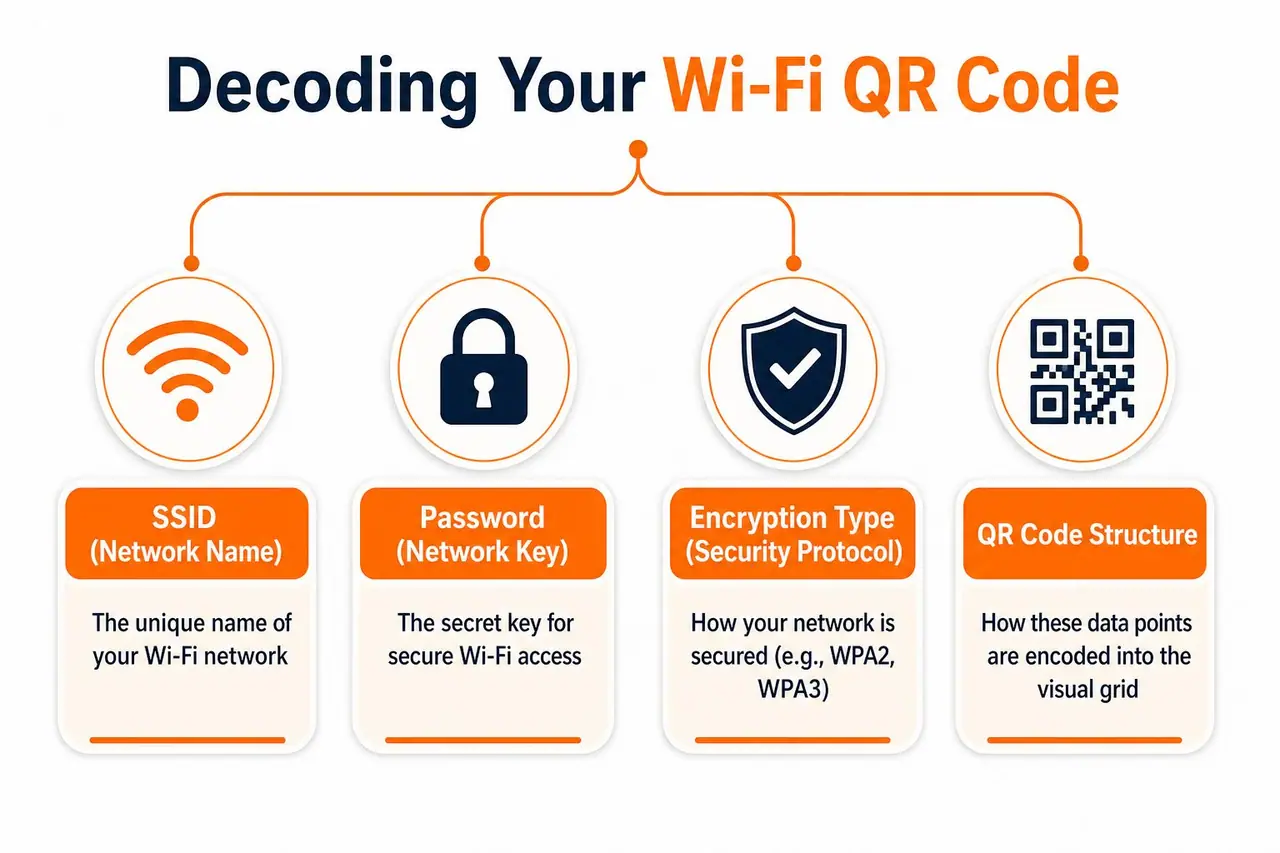
A guest scans the code, and the phone either joins the network or stops cold. That gap usually comes down to the payload format, not the look of the QR image. In a rental setting, that matters because one bad character can turn a polished check-in into a support message.
A Wi-Fi QR code follows a structured payload that devices can read directly. The common format is WIFI:T:<WPA|WEP|nopass>;S:<SSID>;P:<password>;H:<true|false>;;. The fields do specific jobs, and the order helps generators stay consistent. SSID is the exact network name, T tells the device the security type, P carries the password, and H shows whether the network is hidden. The trailing double semicolon is part of the structure, not decoration technical guide to Wi-Fi QR codes.
What usually breaks a code
The failure is usually in the data you put in, not the scan itself. If the security type does not match the router, the phone may read the QR code and still fail to join. Open networks use T:nopass and usually leave the password out, while WPA networks should use T:WPA with the exact passphrase Seagull Wi-Fi QR guidance.
Special characters create another layer of risk. A password like p@ss;word can break the payload if the semicolon is not escaped correctly, and the same issue can show up with backslashes, commas, quotes, or colons. I treat that as a reason to avoid guessing from memory and use a generator that understands Wi-Fi syntax, not a generic text-to-QR tool.
A structured generator also makes it easier to manage the code over time. If you want a closer look at generator behavior and the trade-offs between tools, the guide at ScanStay's QR code generator overview is a useful reference, and the same workflow can support a broader guest setup like a transform text into video tool inside a digital welcome book. That matters in a rental business because the QR code is not a one-time graphic. It is part of an access system that may need password rotation, hidden-network handling, and a clear place in your guest instructions.
The QR image is the wrapper. The connection data has to be exact.
Once you understand the structure, troubleshooting gets much easier. You stop staring at the picture and start checking the network name, security type, password string, and whether the code still matches the router after any change.
How to Generate and Test Your Code
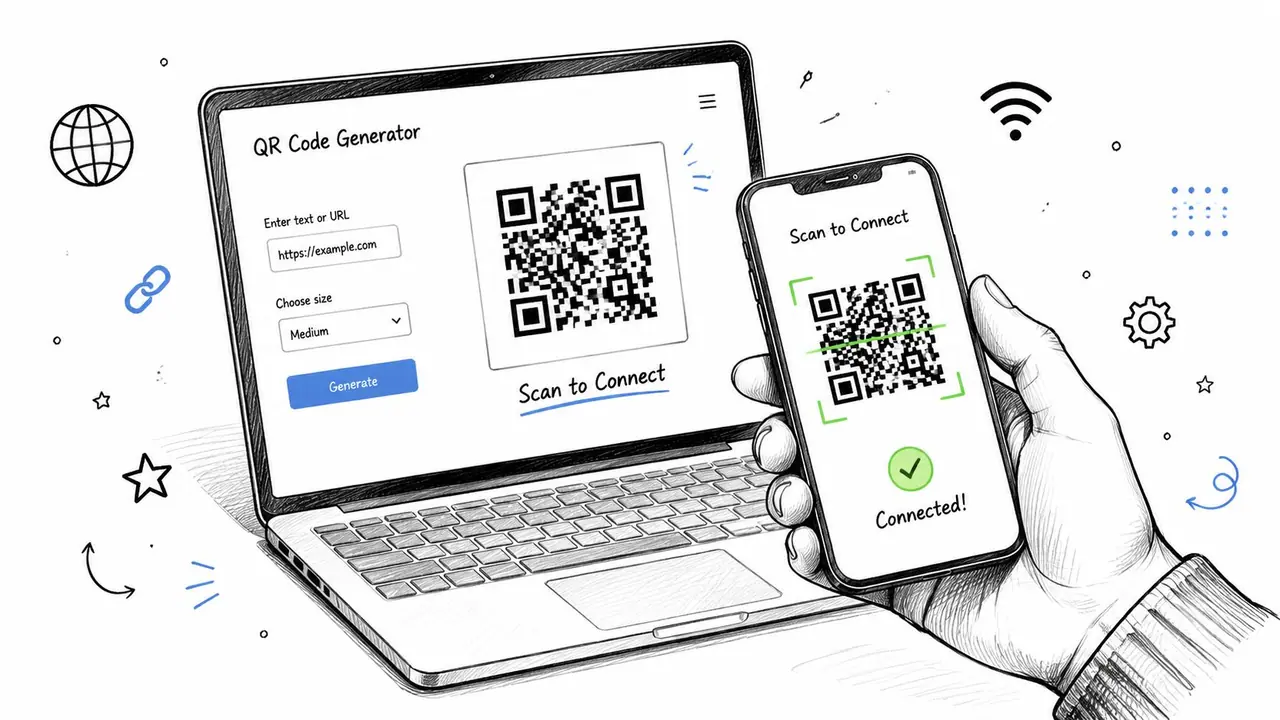
A guest usually meets your Wi-Fi setup at the exact moment they want to settle in. If the QR code is wrong, that first impression turns into a support message, a retry, or a missed connection. A clean setup starts with the network details, not with the image.
Pull the exact SSID, confirm whether the network is WPA, WEP, or open, and copy the password exactly as it exists on the router. If the password includes punctuation or symbols, check the escaping before you generate anything. That small check saves you from reprinting signs after a password change or a typing mistake.
A lot of hosts skip that step and build the code from memory. That is where avoidable failures start. A typo in the SSID or a mismatch between the router's security mode and the code's T field can leave guests stuck at the join screen, even when the code looks professional.
Use a generator built for Wi-Fi sharing
A proper generator should let you enter the SSID, security type, password, and hidden-network setting in a structured way. If you are comparing tools, the simplest test is whether they output the expected Wi-Fi payload format rather than a plain text string. For a closer look at generator behavior and the trade-offs between tools, the internal guide at ScanStay's QR code generator overview is a useful starting point.
Once you have generated the code, test it before printing. Scan it on both iOS and Android, because iOS is notoriously stricter about parsing special characters, and what works on your Android may fail for half your guests. A code that passes on one phone and fails on the other is not ready for guest use.
A good habit is to scan the code on at least one iPhone and one Android device, then verify that both connect without manual edits. If one device fails, regenerate rather than trying to fix the print version. The QR code only helps when it works on the phones your guests use.
For hosts who want a visual walkthrough, a short staff training clip or guest onboarding video can make the process easier to repeat. A simple screen recording of the scan-and-connect flow, created with transform text into video, can be more useful than a long written explanation.
Keep a clean source file for every property. A QR code that prints well today should also be easy to regenerate later if the password changes, the router is replaced, or a guest network gets renamed. That makes rotation faster and keeps the code easy to update inside a digital welcome book instead of scattered across old files.
Printing and Placing Your QR Code for Guests
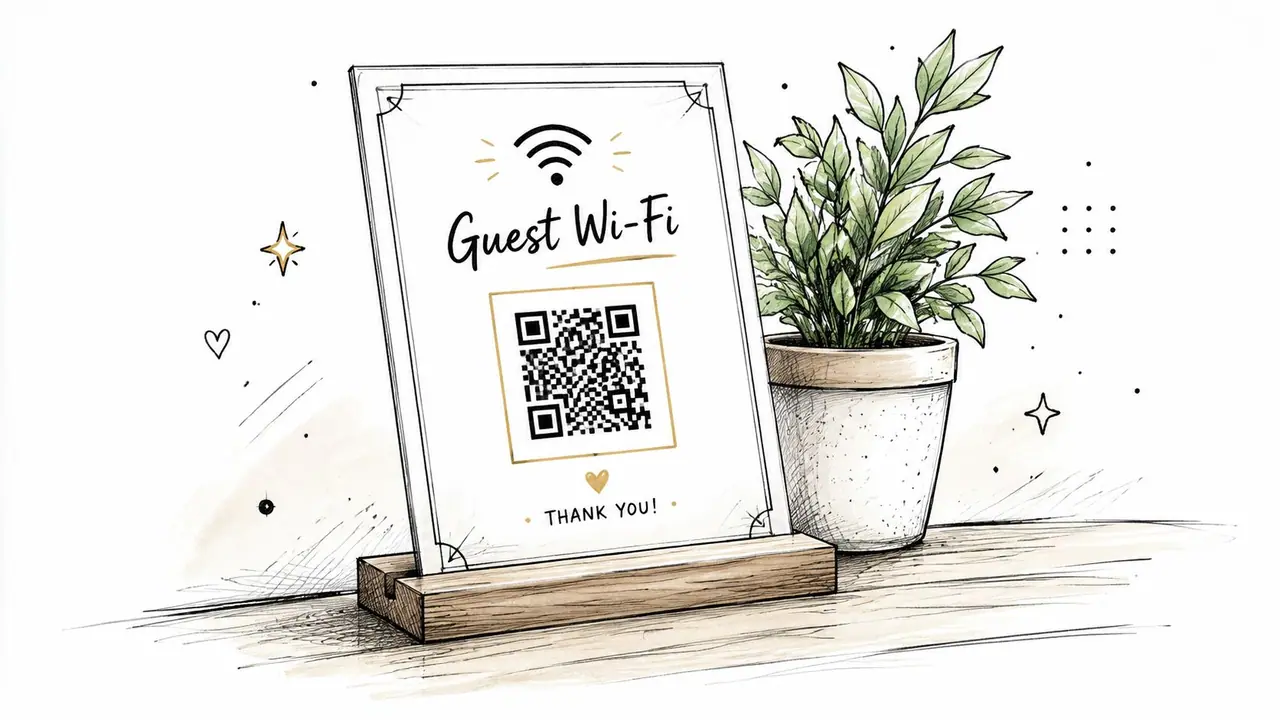
A QR code that's buried behind décor might be technically correct and still fail in practice. Guests scan what they can see easily, not what the host had a good intention to hide. Placement matters because the best code is the one guests naturally notice at the moment they want Wi-Fi.
The strongest locations are the ones tied to arrival or downtime. A framed card on the nightstand, a magnetic sign on the refrigerator, or a small entryway display all work because guests pause there anyway. If you're making the sign look like part of the property rather than a utility notice, choosing acrylic sign holders can help the presentation feel neat and intentional.
Keep the design useful, not busy
The best sign has a clear network name, a direct instruction, and enough white space for the scanner to read easily. Too much branding around the code can crowd the layout and make the sign look decorative instead of functional. Guests should be able to identify the code in one glance.
A short line like “Scan to connect to Wi-Fi” works better than a paragraph. The message should tell guests exactly what to do, and the network name should be visible for anyone who prefers to connect manually. That combination covers both quick scanners and the occasional guest who wants to verify the SSID first.
Placement rule: Put the code where a tired guest naturally stops, not where a host thinks a sign looks balanced.
Printing quality matters too. A crisp, high-contrast sign is easier to scan, especially in low light or on older phones. If you're managing multiple units, a consistent template across properties also makes replacement faster when you update the network details.
Essential Security and Password Rotation Practices
A Wi-Fi QR code is only as safe as the network behind it. The code itself just carries the login details. Exposure comes from a shared password that never changes or a guest network that sits on the same router segment as your personal devices. A clean QR image can still hand guests access to the wrong part of the property network Wi-Fi QR code security guidance.
Separate the guest network from your private network before you print anything. Keep cameras, laptops, NAS devices, and smart home gear off the guest side, and avoid outdated encryption like WEP. The QR code should point only to a guest-only setup, because that gives visitors internet access without opening the rest of your home or rental operations.
Rotation is part of the system, not an emergency fix
A rental Wi-Fi setup works better when password rotation is planned, not improvised. Set a regular rotation schedule, then regenerate the QR code whenever the password changes. Test the new code right away before you retire the old print, since a card left in a drawer or clipped to a wall can stay in circulation long after the network has changed technical guide and best practices.
That routine matters in short-term rentals because access changes with every turnover. One guest may photograph the code, another may forward it to a friend, and a laminated sign can outlive the stay that made it valid. A printed QR code is useful at arrival, but it should never be treated as permanent access QR code risks guidance.
A simple maintenance rhythm helps:
- Check the guest network after every password change: Confirm the QR code and the manual password both match the live router settings.
- Rotate passwords quarterly or after any long-term stay: Update the guest login before the next arrival if the stay created any doubt about who may still have access.
- Keep the guest network isolated: Separate it from private devices, files, and anything tied to your own account.
- Retire stale prints quickly: Remove older signs as soon as the new code is active, so nobody scans an outdated version.
- Test after turnover: Scan the code and join the network yourself before the next guest arrives.
If a guest ever reports that the code worked last week but not today, the problem is usually sync, not the QR format. A sign, a router, and the guest instructions all need to point to the same live password.
For odd connection behavior, the internal guide on ScanStay's technology troubleshooting can help you sort out whether the issue sits with the QR payload, the router, or the guest device trying to connect.
Go Digital From QR Code to Full Welcome Book
A printed QR code helps at check-in, but it still behaves like a fixed object on the wall. If the Wi-Fi password changes, you have to reprint. If you want to add house rules, checkout details, or local recommendations, you end up making another card, another binder insert, or another message thread. A digital welcome book takes over that work and gives you one place to keep guest information current.
While rotating passwords and reprinting codes is good security hygiene, it is still a manual task. A digital welcome book changes the operational workflow. The wall sign can stay in place while the information behind it updates centrally, which is easier to manage across more than one property. It also keeps the guest journey cleaner, because the first scan can open Wi-Fi credentials, house info, and local guidance in one place instead of scattering everything across paper and chat.
Why digital beats static for turnover-heavy rentals
Static printed codes work until they stop matching the live setup. They can be photographed, copied, or left behind after a stay, so a paper sign is only one piece of the system and should not be treated as permanent access QR code risks guidance. For short-term rentals, that flexibility matters because turnover is frequent and support needs change with it.
A digital welcome book also cuts down the number of separate touchpoints you have to maintain. Instead of replacing several signs whenever something changes, you update one source and keep the guest-facing information current. That matters most when the Wi-Fi login is the entry point to the rest of the stay, since guests can move from connection to house instructions without hunting through multiple documents.
If you already use a QR code at the property, the next step is to connect it to a living guest guide. The code stays familiar for guests, but the content it opens is easier to manage, easier to refresh, and more useful during the stay itself. The practical result is fewer repeated questions and a more polished handoff at arrival.
For hosts who want that setup in one place, the internal overview at ScanStay's vacation rental welcome book is a useful next read.
If you want a simpler way to manage guest Wi-Fi, connect it to a digital welcome flow, and stop reprinting signs every time a password changes, start with ScanStay.